How to Share Files on TeraBox in 2026
TeraBox lets you share a file or an entire folder through a link. You can also protect the link with a password or set an expiration date when needed. If you’re learning how to share files on TeraBox, the process is simple once you know the basic steps. This guide explains how to share files on TeraBox on different devices, when to share a folder instead of individual files, and what to do when a recipient cannot open the shared link.
How Does TeraBox File Sharing Work?
Once you know how to share files on TeraBox, the process comes down to three basic steps. Pick a file from your account or upload one, create a share link, and send the link to the recipient. The recipient does not receive a copy of the file directly. Instead, the link opens a TeraBox page where they can view the file and, in most cases, download it.
TeraBox File Sharing vs Sending the Actual File
Emailing a file or sending it through a messaging app transfers an actual copy to the recipient. TeraBox works differently. The original file stays in your account, while the recipient accesses it through a share link.
This can be useful for large files that may exceed email or messaging app attachment limits. TeraBox also gives you more control over shared files because you can protect a link with a password, set an expiration date, or stop sharing it later. With a file sent directly, you cannot control the copy once the recipient has received it.
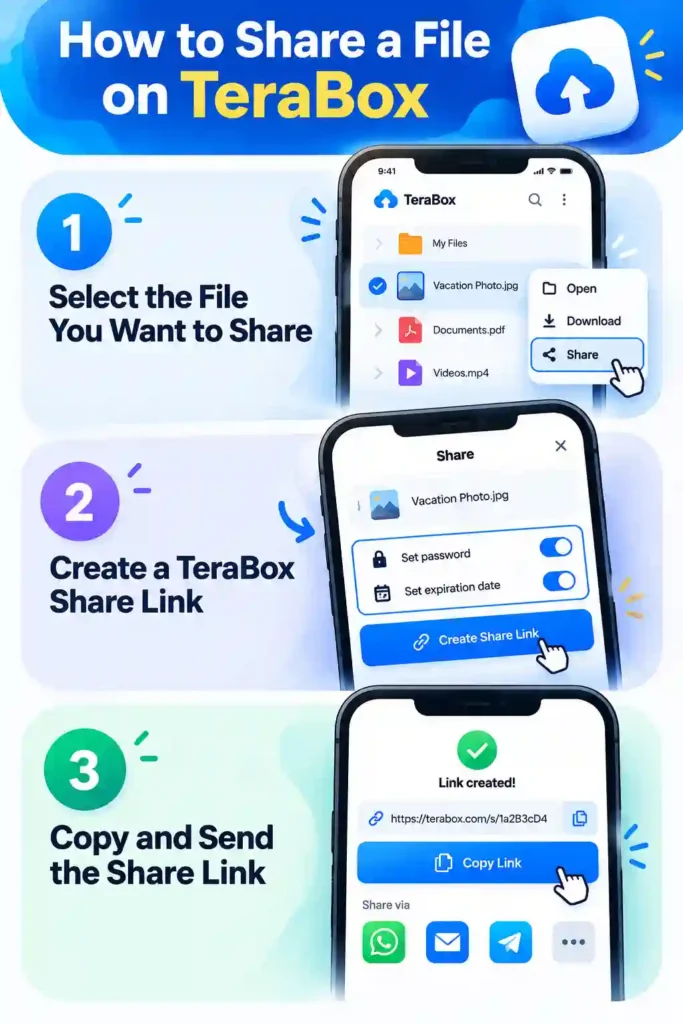
How to Share a File on TeraBox
The basic process for how to share files on TeraBox is similar across different devices. You select a file, create a share link, and send the link to the recipient.
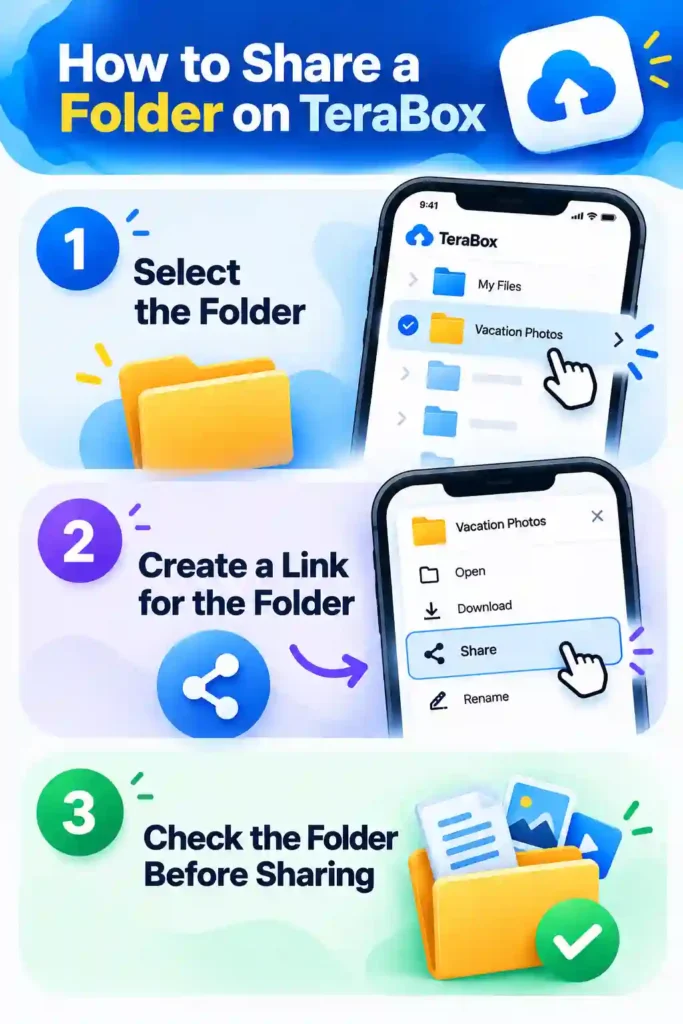
How to Share a Folder on TeraBox
If you need to share several files at once, you can share the entire folder instead of creating separate links for each file. This is useful for event photos, work documents, or other groups of related files.
How to Share TeraBox Files on Android
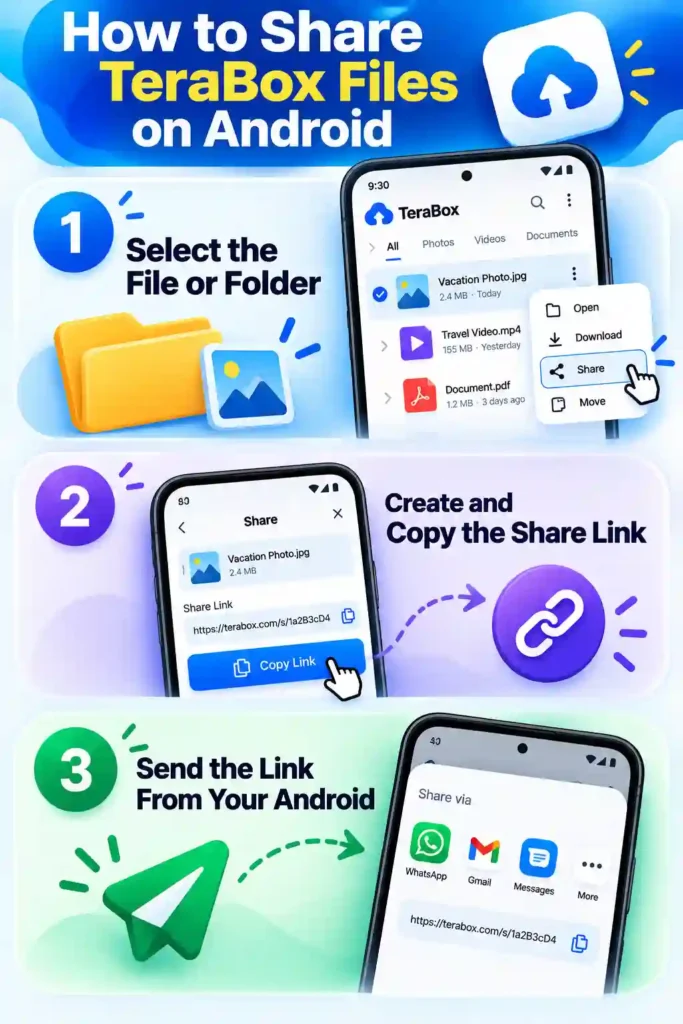
If you’re learning how to share files on TeraBox from an Android phone, you can use the TeraBox app to create and send a share link.
Share a File From the TeraBox App
Open the TeraBox app and find the file you want to share. Select the file and tap Share.
Copy the Link and Send It
Select Copy Link after the share link is created. You can then paste the link into WhatsApp, email, or another messaging app.
Share a Folder From Android
To share multiple files together, select the folder instead of an individual file. Tap Share and create a link for the folder.
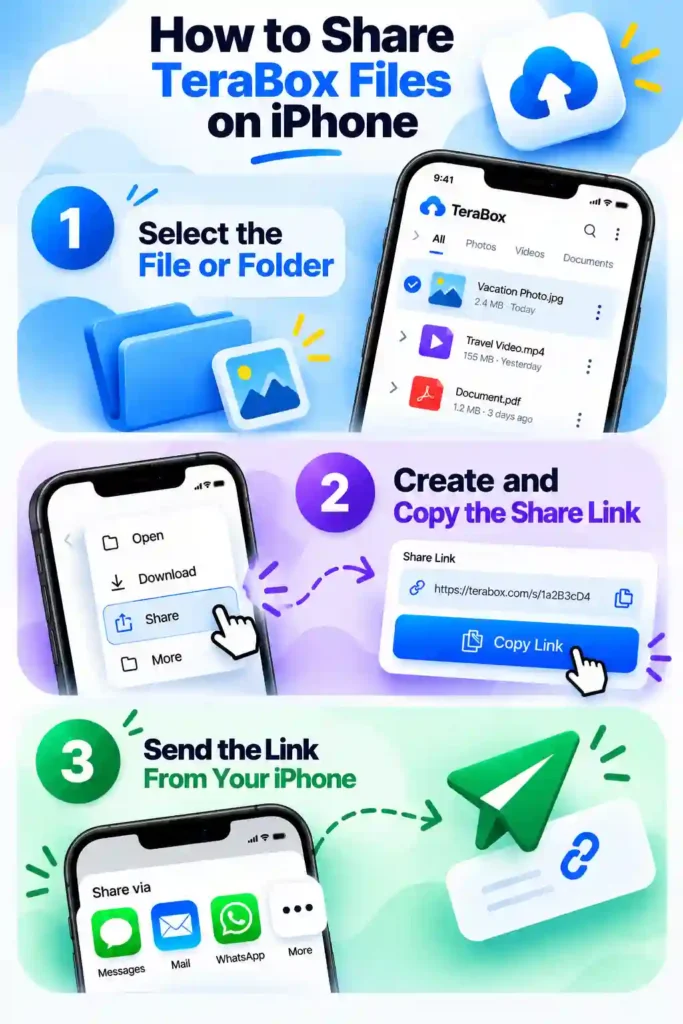
How to Share TeraBox Files on iPhone
How to share files on TeraBox on an iPhone is similar to the Android process. The main steps are to select the file or folder, create a share link, and send it.
How to Share TeraBox Files on PC
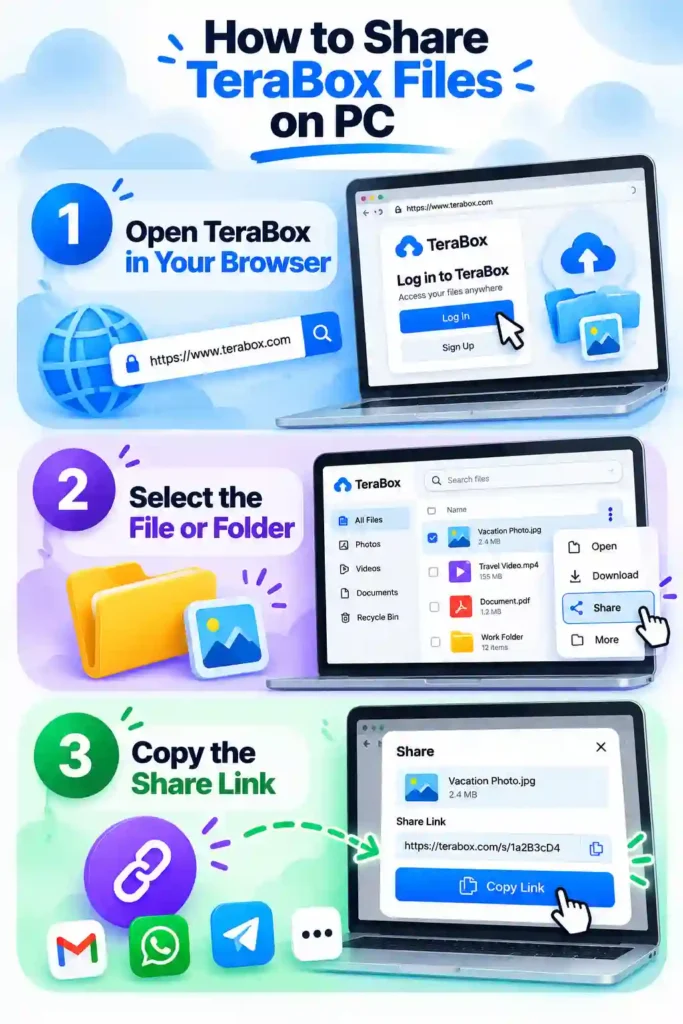
On a PC, how to share files on TeraBox follows the same basic process, but you use the TeraBox website through a browser.
Open TeraBox in Your Browser
Open the TeraBox website and sign in to your account. Your files and folders will be available from the web interface.
Select the File or Folder
Find the file or folder you want to share and click it. Then select the Share option.
Copy the Share Link
Click Share to create the link, then copy it and send it through email, messaging apps, or another service.
Can You Password-Protect a TeraBox Share Link?
Yes. Knowing how to share files on TeraBox securely includes using password protection when you need extra privacy. Depending on your account and app version, the password option may appear when you create the share link.
When Should You Use a Password?
Use password protection when the shared file contains personal, private, or sensitive information. For example, you may want to protect documents, ID scans, financial records, or other files that should not be publicly accessible.
What Does the Recipient Need to Open a Protected Link?
The recipient needs both the share link and the password. The password may also be referred to as an extraction code, depending on how it is displayed.
How to Share the Password Safely
Send the share link and password through separate channels when possible. For example, send the link through WhatsApp and share the password through a text message or another private method.
Can You Set an Expiration Date for a TeraBox Link?
Yes. Knowing how to share files on TeraBox with a time limit can help when you only want a link to remain available for a specific period.
Temporary vs Permanent Share Links
Depending on your account and how you create the link, you may be able to choose between a link with an expiration date and one that remains available without a set expiration.
When an Expiring Link Makes Sense
An expiring link can be useful for temporary files, such as a client preview or an event video that only needs to be available for a limited time. It can also reduce the need to manually remove the link later.
What Happens When a Share Link Expires?
When a share link expires, it stops working, but the original file remains in your TeraBox account. If you want to share the file again, you can create a new share link. If a link has already expired, you can also check the relevant troubleshooting guide for possible solutions.
How to Share Large Files With TeraBox
Knowing how to share files on TeraBox is especially useful when you need to send large files that may be difficult to share through email or messaging apps.
Why Use a TeraBox Link for a Large File?
Large videos and archive files may exceed the attachment limits of email and messaging apps. A TeraBox share link lets the recipient access the file directly through TeraBox instead of relying on those attachment limits.
Sharing Large Videos and Other Files
The sharing process remains the same for large files. Select the file, create a share link, and send it to the recipient. A larger file may take more time to upload or download, but the sharing steps do not change.
Share a Large Folder Instead of Sending Files Individually
If you need to share several large files, sharing the entire folder can be more convenient than creating separate links for each file. Before sharing it, check the folder to make sure it contains only the files you want the recipient to access.
Can You Share TeraBox Files Without Sending the Actual File?
Yes. TeraBox link-based sharing lets you give someone access to a file without sending the original file directly. The original file remains in your TeraBox account while the recipient uses the share link to access it. If the recipient needs to download the shared file, they can use our TeraBox Downloader to download files from supported TeraBox links. If you send the file directly through email or a messaging app, the recipient receives a separate copy. You cannot remove that copy from their device after it has been downloaded.
Can You Share TeraBox Files With Someone Who Does Not Have the App?
Yes. Knowing how to share files on TeraBox with someone who does not have the app is simple because TeraBox share links can open in a regular web browser. The recipient does not need to install the app just to access the shared file. If they need to download the shared file, they can also learn how to download TeraBox files without login.
What the Recipient Needs
The recipient needs the share link and, if you set one, the password. A standard public share does not require the recipient to have the TeraBox app installed.
When the Recipient May Be Asked to Sign In
Some sharing settings may require the recipient to sign in, especially when the link is restricted to specific accounts instead of being shared publicly. If the recipient is asked to install the app, you can also refer to your guide on opening TeraBox links without the app.
How to Share Files Directly With TeraBox Friends
TeraBox lets you share files directly with specific people through its Friends feature. This can make regular file sharing easier when you often send files to the same people.
What TeraBox Friend Sharing Means
TeraBox also lets you share files directly with specific people through its Friends feature. You can select a file, tap Share, choose Friends, and send the file to the selected person.
When Direct Sharing Is Useful
Direct sharing can be useful when you regularly send files to the same people because it avoids copying and sending a share link each time. For one-time sharing with someone outside TeraBox, a regular share link may be more suitable.
Why Can’t Someone Open My TeraBox Shared File?
Even when you know how to share files on TeraBox, a shared file may still be inaccessible for a few common reasons. These issues are specific to sharing and are separate from general TeraBox link troubleshooting.
The Share Link Has Expired
If the share link has an expiration date, it may stop working after that time. Create a new share link if the recipient still needs access.
The File or Folder Is No Longer Available
If the file or folder was deleted or moved, the original share link may no longer work. Find the current file or folder in your TeraBox account and create a new link.
The Recipient Needs the Password
If the share link is password-protected, the recipient also needs the correct password to open it. Send the password separately if they did not receive it.
The Recipient Does Not Have the Required Access
If the share is restricted to specific accounts, people outside the approved list may not be able to open the link. Check the sharing settings and confirm that the recipient has the required access.
How to Stop Sharing a TeraBox File
Knowing how to share files on TeraBox also means understanding how to stop sharing a file when you no longer want others to access it. You can manage shared links and remove access when needed.
Find Your Shared Files
TeraBox keeps your shared files and links in a dedicated sharing or link management area. Open these settings to find the file or link you want to manage.
Remove or Change the Share
Cancel the share link to stop new access to the file. Depending on your app version, you may also be able to add a password or expiration date to an existing share link.
What to Check After Stopping a Share
Cancelling a share link stops new access, but it does not remove copies that someone has already downloaded. If a recipient saved the file before you cancelled the link, that copy remains on their device.
Is It Safe to Share Files Through TeraBox?
Sharing files through TeraBox can be safer when you use the available sharing controls. Password protection, expiration dates, and careful access settings can help you control who can access a shared file.
Use Password Protection for Sensitive Files
Use password protection when sharing personal, confidential, or sensitive files. A password adds an extra layer of protection compared with a public share link.
Avoid Posting Private Links Publicly
Avoid posting private share links on public forums or social media. Anyone who finds a public link may be able to access it or share it with others. Send private links directly to the people who need access.
Check the File Before Sharing
Check the contents of a file or folder before sharing it. This is especially important for folders because they may contain files you did not intend to share.
Be Careful With Sensitive Information
Password protection does not prevent someone who already has access from sharing the file or password with others. Only share sensitive files with people you trust to handle the content responsibly.
Frequently Asked Questions
Conclusion
Learning how to share files on TeraBox comes down to a few simple steps: select the file or folder, create a share link, choose password or expiration settings when needed, and send the link. Using these sharing controls can help you manage access and keep shared files more secure.