
Why Is My TeraBox Link Not Working? Try 8 Easy Fixes in 2026
You click a Terabox link expecting the file to open as it did before, but instead you’re left staring at a blank page, an error message, or a loading screen that never seems to finish. When you’re dealing with a Terabox link not working, it’s natural to think the problem is with your phone, computer, or internet connection, especially when the same link worked without any trouble before. In reality, the issue can come from several places, including an expired share link, a deleted file, a browser problem, a copied URL with missing characters, or a temporary issue with Terabox itself.
The good news is that you don’t have to guess your way through every possible fix. A few simple checks can usually tell you where the problem is and what you should try next. In this guide, we’ll go through the most common causes of a TeraBox link not working and the practical steps that can help you get the link open again.
Why TeraBox Links Stop Working
A TeraBox link not working issue can happen for several reasons, from an expired share or deleted file to a damaged URL, browser problem, or unstable internet connection. The good news is that most of these problems are easy to identify. Below are the eight most common causes and what you can do about each one.
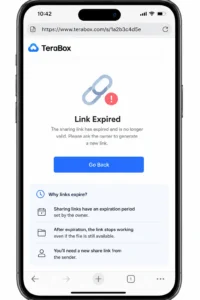
1. The Link May Have Expired
If the link worked before but now shows an error, a blank page, or keeps loading without displaying the file, it may have reached the end of its sharing period. In that case, the TeraBox link not working problem is with the shared URL rather than your phone or browser. The file may still be available in the sender’s TeraBox account, but the old share link may no longer give you access to it. The easiest solution is to ask the sender to check the file and create a new share link for you.
2. The File Was Removed or Deleted
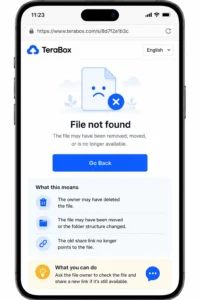
If Terabox shows a “file not found” message, the problem is likely with the file rather than the link itself. The owner may have deleted or moved it, or changed how it was shared, leaving the TeraBox link not working even though the URL still exists. In this situation, there isn’t much you can do from your side because only the owner can check what happened to the file. Ask them to open it from their Terabox account and, if it is still available, create a new share link and send it to you.
3. The File Requires a Password
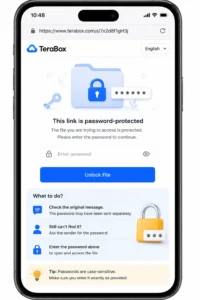
If a Terabox share is password-protected, the file may not open until you enter the correct password, which can make the link seem broken when the real issue is simply that you don’t have the required code. This is especially easy to miss when the sender shares the link and password in separate messages. Check the original conversation first to see whether the password was sent separately. If you can’t find it, ask the sender for it and enter it on the Terabox page to access the file.
4. The Link Was Copied Incorrectly
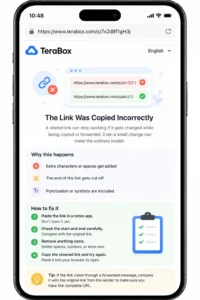
A shared URL can stop working if it is altered during copying or forwarding, especially when a character is removed or extra text is added. Even a small change can make the address invalid, so check the URL before assuming the file is gone. If a TeraBox link not working after copying or forwarding it, paste the URL into a notes app and compare it with the original message, paying close attention to the beginning and end. Remove any extra characters, copy the corrected URL, and open it again in your browser.
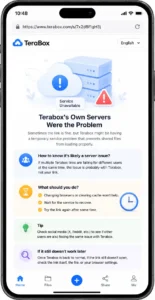
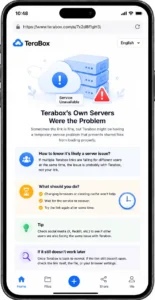
5. Terabox’s Own Servers Were the Problem
Sometimes the link is fine, but TeraBox is having a temporary service problem that prevents shared files from loading properly. If several TeraBox links are failing across different devices or networks, the TeraBox link not working issue is more likely related to the service than the specific URL. In that case, changing browsers or clearing your cache won’t solve the underlying problem. Wait for the service to recover and try the link again later. If the same link still doesn’t work once Terabox is back to normal, you can then check the link itself, the file, or your browser.
6. Your Browser Could Be Blocking the Link
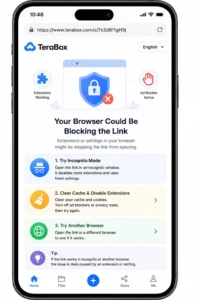
If the Terabox link works on other devices but not in your usual browser, something in the browser may be interfering with the page. Cached data, browser extensions, or privacy settings can sometimes prevent the page or its scripts from loading correctly. Start by opening the link in an incognito or private window. If it works there, clear your browser cache and temporarily disable extensions such as ad blockers or privacy tools before trying again. You can also open the same link in another browser; if it works there, the problem is likely related to the settings or extensions in your usual browser.
7. Region Restrictions Got in the Way
If the same link opens for someone in another location but not for you, a regional restriction may be preventing access to the file. This is less common than other link problems, but it is worth checking before changing your browser or device settings. First, switch from Wi-Fi to mobile data and try the link again, or ask someone in another location to test it. If the link works elsewhere, you can also try a reputable VPN server in a different region to see whether the page becomes accessible. If it still fails from multiple locations, the problem is more likely related to the link or file itself.
8. You Weren’t Logged In
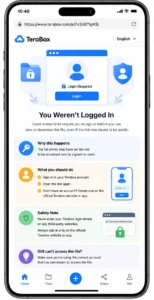
If Terabox takes you to a login screen instead of opening the shared file, the link may require you to sign in before you can access it. This can happen even when you expected the file to be available without an account. Try signing in to your Terabox account and opening the link again. If you don’t have an account, follow Terabox’s own sign-up process. Also, make sure you enter your login details only on the official Terabox website or app, not on a third-party page.
If you don’t want to install or use the app, see our guide on How to Open a TeraBox Link Without the App for the browser method.
Video Playback Problems Are Not the Same as Link Problems
A Terabox link can open normally while the video inside it refuses to play, so a loading preview does not always mean the link itself is broken. The file may be available and downloadable even when the built-in video player fails to load. Try opening the link in another browser first, as playback can sometimes depend on browser compatibility. If the video still won’t play, download the file and open it with a media player on your device. In this case, the Terabox link is working; the problem is with video playback.
Note: If you’re trying to play a TeraBox video online, you can also check our guide on Download TeraBox Videos Online.
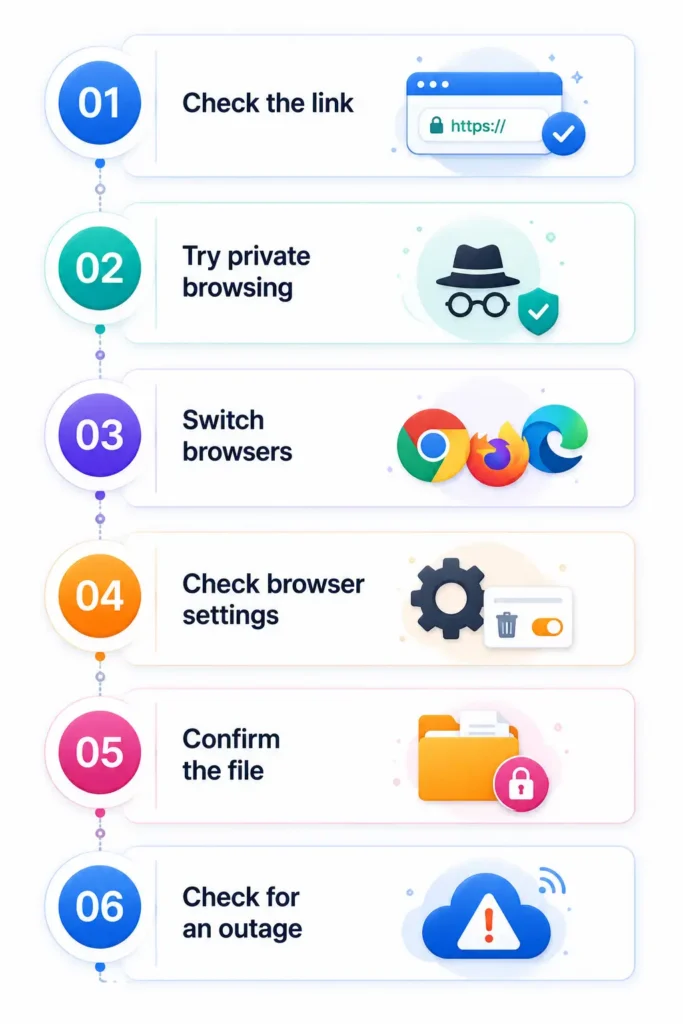
A Quick Troubleshooting Checklist
If your TeraBox link not working issue is still there, try these checks one by one before moving to bigger fixes. Start with the easy ones first, then check the browser, file, and TeraBox itself if needed.
Check the link
Make sure it starts with https:// and has no missing or extra characters.
Try private browsing
Open the link in an incognito or private window.
Switch browsers
Test the same link in another browser.
Check browser settings
Clear the cache and temporarily disable extensions.
Confirm the file
Ask the sender whether the file still exists and if the link requires a password.
Check for an outage
If multiple users are reporting TeraBox problems, try the link again later.
How to Tell If a TeraBox Link Is Still Valid
The message you see after opening a TeraBox link can help you identify where the problem is. If you get “link invalid” or “file not found,” the link may have expired, been changed, or point to a file that is no longer available. In that case, browser fixes won’t help, and you’ll need the sender to provide a new link. A blank page or loading screen points to a different type of problem. The link may still be valid, while your browser, connection, or TeraBox itself is preventing the file from loading. In this type of TeraBox link not working case, try the troubleshooting steps above before asking for another link.
Is It Safe to Use a TeraBox Downloader Tool?
A TeraBox downloader can be useful when a shared link does not work properly through the usual app or browser, but the tool itself is not part of TeraBox. That means you should check the website before entering any information or downloading anything from it. A legitimate downloader should not need your TeraBox username or password to process a public link. Be careful with pages that ask you to install unknown software, show several misleading download buttons, or redirect you through unrelated websites. Check that the site uses HTTPS and clearly explains what it does with your information. If the page looks suspicious or keeps asking for unnecessary permissions, it is safer to leave it and use another option.
Frequently Asked Questions
Conclusion
A TeraBox link not working usually has a simple cause, such as an expired link, unavailable file, browser issue, or temporary service problem. Check the error message first, then work through the relevant fixes instead of trying everything at once. If the link still fails after those checks, ask the sender to verify the file and share a new link.