Best Video Players for TeraBox Videos on Android & PC
You download a video from TeraBox, tap to play it, but your phone shows an error or plays the picture without sound. You just want to watch your video, but trying different apps without knowing which one works can waste your time. The best video players for TeraBox videos can help you fix these playback problems. In this guide, we compare VLC Media Player, MX Player, and the built-in players on Android and Windows. We’ll explain the differences to help you choose the best video players for TeraBox videos for your device and video files.
Can You Play TeraBox Videos With a Third-Party Video Player?
Yes, but it depends on how you access the video. Before choosing the best video players for TeraBox videos, it helps to understand the difference between a downloaded video file and a shared TeraBox link. Players like VLC and MX Player can open downloaded files, while a normal shared link usually opens a webpage instead.
Downloaded video vs. TeraBox shared link
A TeraBox shared link usually opens a webpage where the video plays in TeraBox’s built-in player. A downloaded video is saved as a file on your phone or computer. For example, its filename might be movie.mp4 or clip.mkv. VLC and MX Player can open downloaded video files, but a normal TeraBox shared link usually cannot be opened directly in these apps. If you haven’t downloaded the video yet, follow our guide on how to download TeraBox files without login for more details.
Why a Link Works in a Browser but Not in a Video Player
When you open a TeraBox link in Chrome or Safari, the browser loads the webpage and its built-in video player. A separate video player like VLC usually cannot open the same sharing link because it expects a video file or a direct link to the media itself. A direct media URL points to the video rather than the webpage. However, some media URLs expire or require access permissions, so they may not work for long.
Which Video Formats Can You Expect?
TeraBox videos can come in different formats, depending on the file uploaded. MP4 and MKV are common examples. These files may use H.264 or HEVC (H.265) for video and AAC for audio. Some MKV files contain AC3, E-AC3, or DTS audio, which certain players may not support. If the video plays but you hear no sound, the audio format could be the reason. Knowing the video and audio formats can help you choose the best video players for TeraBox videos for your needs.
1. VLC Media Player — Best All-Round Option
VLC Media Player is a free, open-source video player with no ads. It is one of the best video players for TeraBox videos if you want an option for both Android and PC that supports a wide range of video and audio formats.
Key Features of VLC Media Player
VLC supports common video formats such as MP4, MKV, AVI, MOV, and WebM without requiring separate codec packs in most cases. It can also handle HEVC (H.265) video and audio formats such as AC3, E-AC3, and DTS, making it useful when another player has trouble with a file. Hardware decoding can help videos play more smoothly on supported devices, including some 1080p and 4K videos. VLC also supports SRT, ASS, and SSA subtitles and lets you switch audio tracks when multiple tracks are available.
Does VLC Support Android and PC?
Yes, VLC is available for Android, Windows, macOS, Linux, iPhone, and iPad. You can install it on Android through the Google Play Store or download the desktop version from the official VideoLAN website. Always use official sources to avoid unofficial installers.
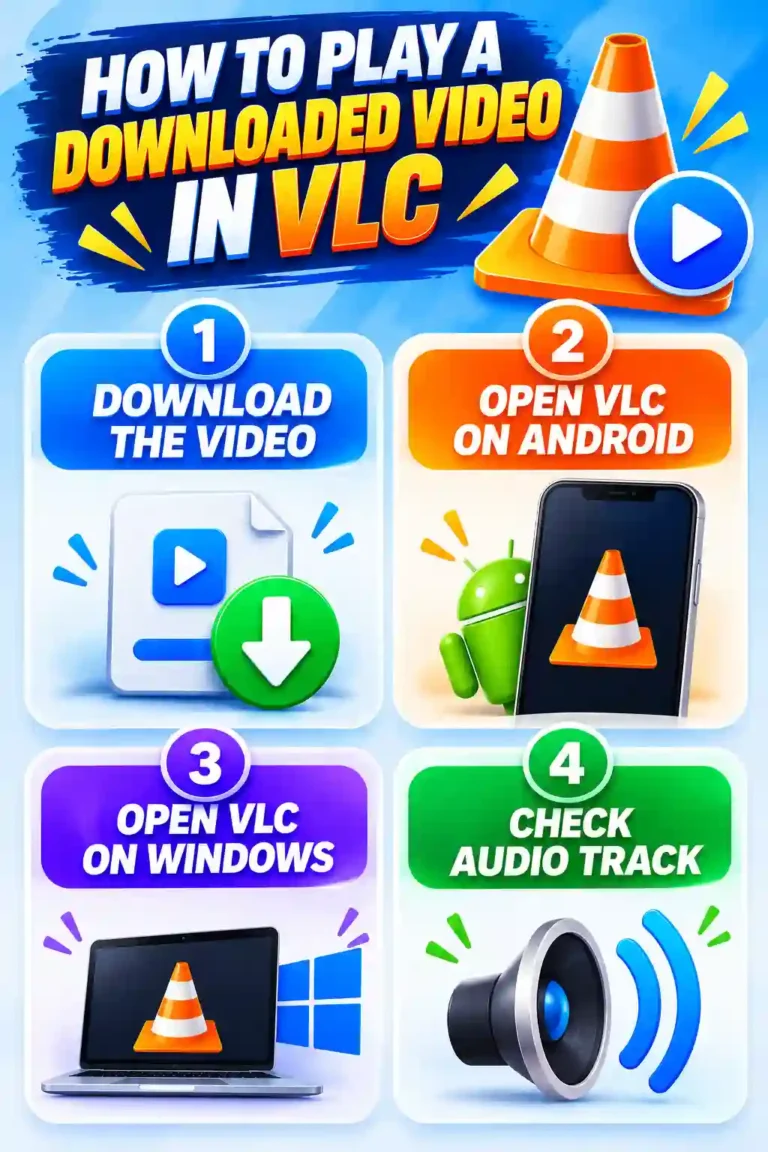
How to Play a Downloaded TeraBox Video in VLC
Download the TeraBox video and make sure the download is complete.
On Android, open VLC, tap Browse, open Downloads, and select the video.
On Windows, right-click the video, select Open with, and choose VLC.
If sound is missing, open Audio and check for another available track.
Pros & Cons of VLC
A quick look at the good and the not-so-good.
Pros
What makes VLC greatWatch videos without ads or subscription fees.
Plays many popular video and audio formats.
Available for phones and computers.
Cons
Things to keep in mindThe simple design may feel outdated to some users.
Some options can be difficult to find.
Fewer gesture controls than MX Player.
2. MX Player — An Option for Android Users
MX Player is an Android video player with touch controls that make watching videos easier on a phone. It is one of the best video players for TeraBox videos if you prefer gestures over traditional playback controls. The free app includes ads.
Key Features of MX Player
MX Player lets you swipe on the screen to adjust volume, change brightness, and move through a video. You can also pinch to zoom and double-tap to skip forward or backward. Its Kids Lock feature helps prevent accidental taps from interrupting playback.
Supported Video Formats and Playback Controls
MX Player supports common formats such as MP4, MKV, and AVI. It offers three decoder modes: HW, HW+, and SW. If a video stutters or displays a black screen, trying a different decoder mode may help. The app also supports SRT and ASS subtitles, with options to adjust their size and timing.
Some videos may have Dolby or DTS audio that the app cannot play because of format support limitations. If a video plays without sound, try opening it in VLC instead. Avoid downloading unofficial custom codec files or modified APKs, as they may contain malware.
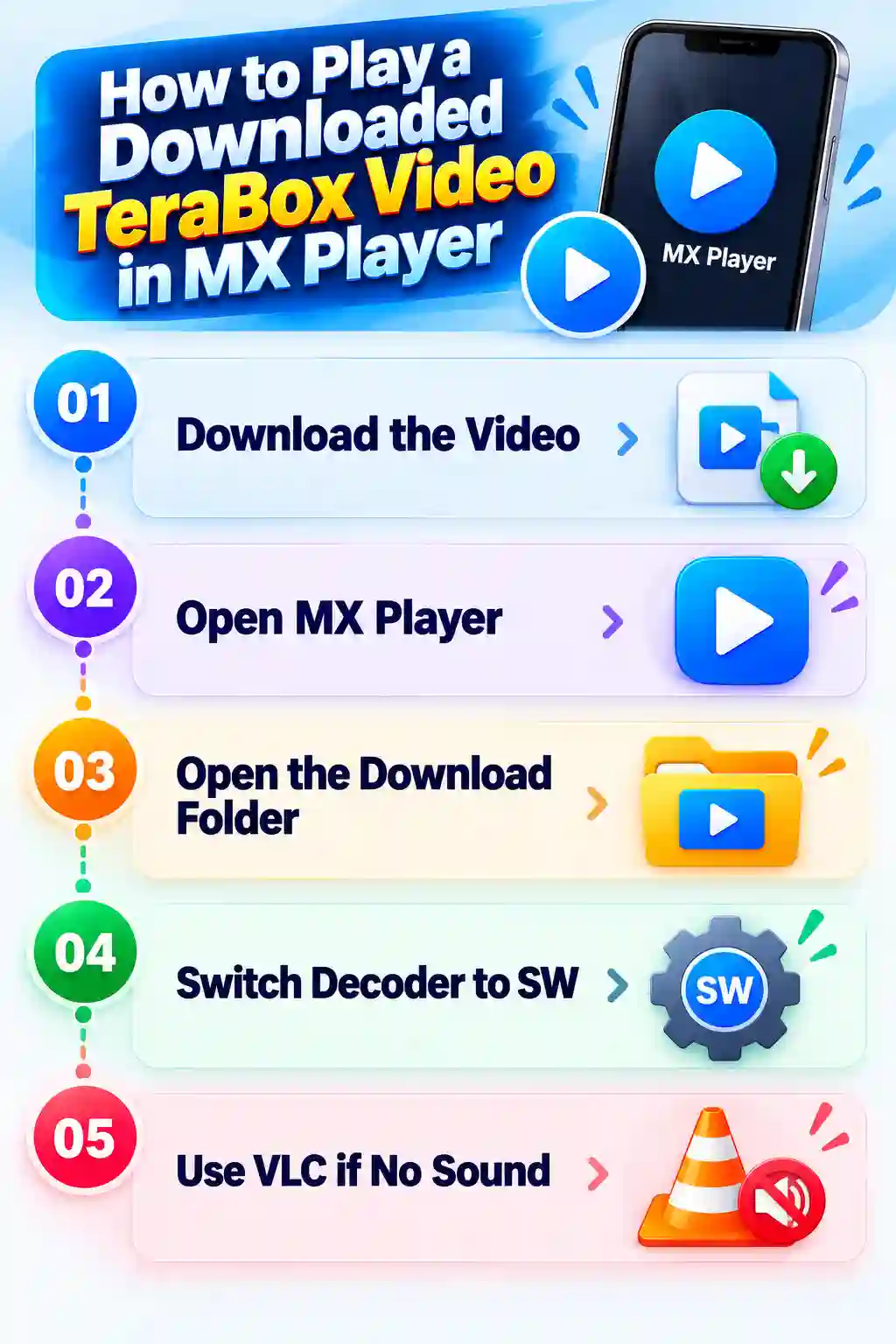
How to Play a Downloaded TeraBox Video in MX Player
Download the Video
Download the TeraBox video to your phone and install MX Player from the Google Play Store.
Open MX Player
Launch MX Player and allow access to your videos when prompted.
Play the Video
Open the Download folder and tap your video to start playback.
Switch Decoder to SW
If the picture freezes or stays black, try switching the decoder to SW.
Try VLC for Audio
If the video has no sound, open the same file in VLC.
Pros & Cons of MX Player
A quick look at the strengths and limitations.
Pros
What works well
Cons
Things to consider
3. Built-In Video Players — Best for Simple Playback
The video player already installed on your phone or computer may be enough for basic MP4 files. However, support for MKV files, HEVC video, and certain audio formats depends on your device and operating system. The best video players for TeraBox videos are not always third-party apps; sometimes, your built-in player is all you need.
Playing TeraBox Videos With the Android Video Player
To play a downloaded TeraBox video on Android without installing another app, open your file manager, go to the Download folder, and tap the video. It may open in Google Photos, Files by Google, or your phone’s gallery app, depending on your device. Google’s Android documentation explains which media formats Android supports. However, playback can still vary by device, and some files may play without sound if the audio format is unsupported.
Playing Downloaded Videos on Windows
On Windows 11, you can open a downloaded video by double-clicking it in File Explorer. The built-in Media Player supports common formats, including MP4 and MKV, but playback depends on the video’s codecs.
Some HEVC videos may require Microsoft’s HEVC Video Extensions, which can be a paid add-on. Certain audio formats, including DTS, may also need additional support. If your video opens but has no sound, try playing it in VLC.
When Is a Built-In Player Enough?
A built-in player is usually enough for a standard MP4 file that plays correctly. You do not need to install another app if your current player handles the video without problems. If you see an error, a black screen, or missing sound, trying VLC is a practical next step.
Pros & Cons of Built-In Video Players
A quick look at the benefits and limitations.
Pros
Simple and convenient
Cons
Some limitations to consider
VLC vs MX Player vs Built-In Players
Compare features and choose the right player for your videos.
| Video Player | Devices | Ease of Use | Subtitles | Key Features | Limitation | Best For |
|---|---|---|---|---|---|---|
| VLC Media Player | Android, Windows, Mac, Linux, iOS | Easy, plain design | SRT, ASS, SSA, embedded | Built-in decoders, audio-track switching | Fewer touch gestures on Android | MKV, HEVC, Dolby/DTS |
| MX Player Android Player | Android | Very easy, gesture-based | SRT, ASS, embedded; timing control | Swipe gestures, HW/HW+/SW, Kids Lock | Ads; some Dolby/DTS audio | Android phones |
| Built-In Default Player | Device it comes with | Easiest, already installed | Basic; depends on the app | Basic playback controls | Support varies by device | Simple MP4 files |
VLC Media Player
MX Player
Built-In Players
How to Choose the Best Video Player for TeraBox Videos
The best video players for TeraBox videos depend on your device, the file format, and the features you need. A few simple checks can help you choose the right player without installing several apps.
Choose Based on Your Device
If you watch videos on both your phone and computer, VLC is a practical choice because it supports multiple platforms. If you mainly use Android and prefer gesture controls, MX Player may suit you better. You can also keep VLC as a backup for files that MX Player cannot play properly.
Check the Video Format
Check the file extension at the end of the filename before choosing a player. MP4 files with common codecs usually work in many players, while some MKV and HEVC files may need broader format support, such as what VLC offers. A file ending in .apk or .exe is an application or executable file, not a video, so do not open it expecting video playback.
Consider Subtitles and Playback Controls
If you watch videos with subtitles, choose a player that supports the subtitle formats you use. VLC and MX Player support common formats such as SRT, while subtitle options in built-in players vary by app and device. MX Player may suit you if you prefer swipe gestures, while VLC offers a wider range of playback settings.
Choose Between Local Playback and Online Streaming
Downloading a video lets you watch it offline, provided the file is saved on your device. If you only want to watch a video once, streaming through a browser may be more convenient when the TeraBox link allows it. Our guide to playing TeraBox videos online explains this option.
Why Is Your TeraBox Video Not Playing?
Even the best video players for TeraBox videos cannot fix every playback problem. The cause may be an unsupported format, an incomplete download, missing audio support, or a problem with the shared link.
Unsupported Video Format
If your player shows an error or refuses to open the video, it may not support the file’s format or codec. Try opening the file in VLC, which supports a wide range of video formats.
Incomplete or Damaged Download
If a video stops partway through or will not open, the download may be incomplete or damaged. Check the file size against the original, if available, and download it again if the file appears incomplete.
Missing Audio or Subtitle Support
If the picture plays but there is no sound, your player may not support the video’s audio format. Try opening the file in VLC to see if the sound works there. If subtitles are missing, check whether the video includes them or whether you need to load a separate SRT subtitle file.
Problems With the TeraBox Link
If you cannot open or download the video, the shared link may have expired, been deleted, or have access restrictions. Check whether the link still works in your browser. For more help, read our guide on why a TeraBox link is not working, which explains common causes and possible fixes.
Frequently Asked Questions
Conclusion
For Android users, VLC is a reliable choice for videos with difficult formats, while MX Player is worth considering if you prefer swipe controls and do not mind ads. On PC, VLC supports a wide range of video and audio formats, so you may not need extra codecs for many files. If you only watch standard MP4 videos, your device’s built-in player may be enough. Overall, the best video players for TeraBox videos depend on your device and the files you watch. If you want one player that works across Android and PC, VLC is the best starting point because it supports many common video and audio formats. For more TeraBox guides and tools, visit TeraDownloaderPlayer.